
Create a zoom in or zoom out video

Zoom is a preset in Camera Movements, part of Everypixel's AI workspace for video, image, and voice generation. It takes a single photo and generates a 5-second 16:9 video where the camera physically moves toward your subject or pulls back from it at a steady pace, keeping the same angle and height, while the action you describe plays out in the frame. The move is built into the preset, so you only add a photo, one line about the shot, and a direction. For examples, see the Zoom In & Out page.
Zoom In & Out is available on the Starter and Pro plans. Each run costs credits, with the exact cost shown on the Generate button.

Open Zoom

Open Apps from the sidebar and click Camera Movements. In the Preset block at the top of the right panel, pick Zoom from the list — it sits next to Crash Zoom, Dolly Zoom, Arc Shot, Camera Crane Up, and Camera Crane Down.
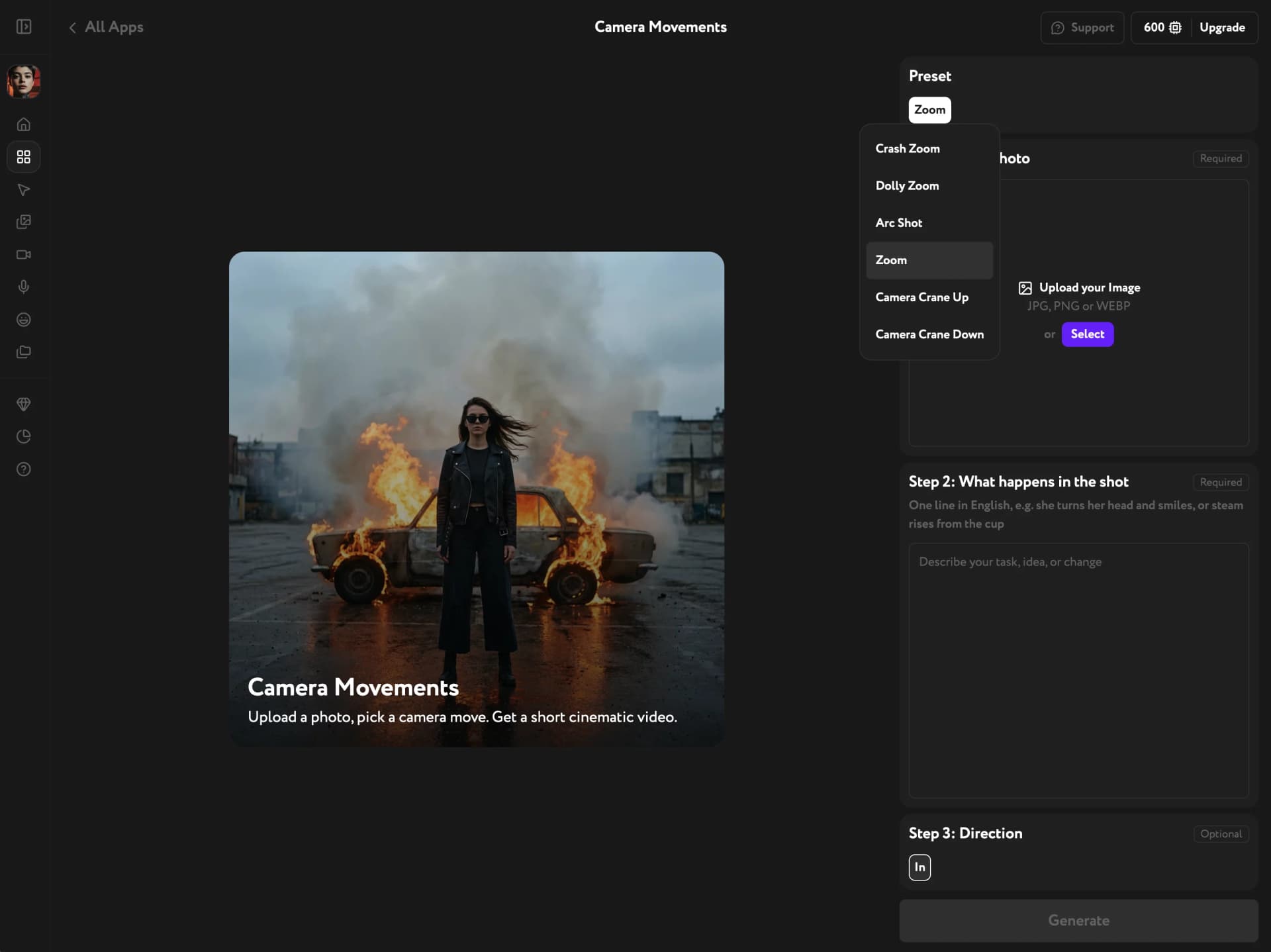
Camera Movements app with the Preset list open and Zoom highlighted

Add your photo

Under Step 1: Your photo, upload a JPG, PNG, or WEBP from your device. Or click Select to pick an image already in your Everypixel library — anything you generated or uploaded earlier works.

For a pull-back, choose a photo that shows some of the surroundings. As the frame widens, the new edges continue the same surfaces and light as your photo, so a street, a shoreline, or a room gives the move more to work with.

Describe what happens in the shot

Under Step 2: What happens in the shot, write one line in English about the action in the frame. For example, "she turns her head and smiles" or "steam rises from the cup."

Describe the subject, not the camera. The move is already part of the preset, so words like zoom in, push in, or the camera pulls back only repeat it and can make the result less predictable.

Choose In or Out

Under Step 3: Direction, pick In to move the camera toward your subject or Out to pull it back. In is selected by default.
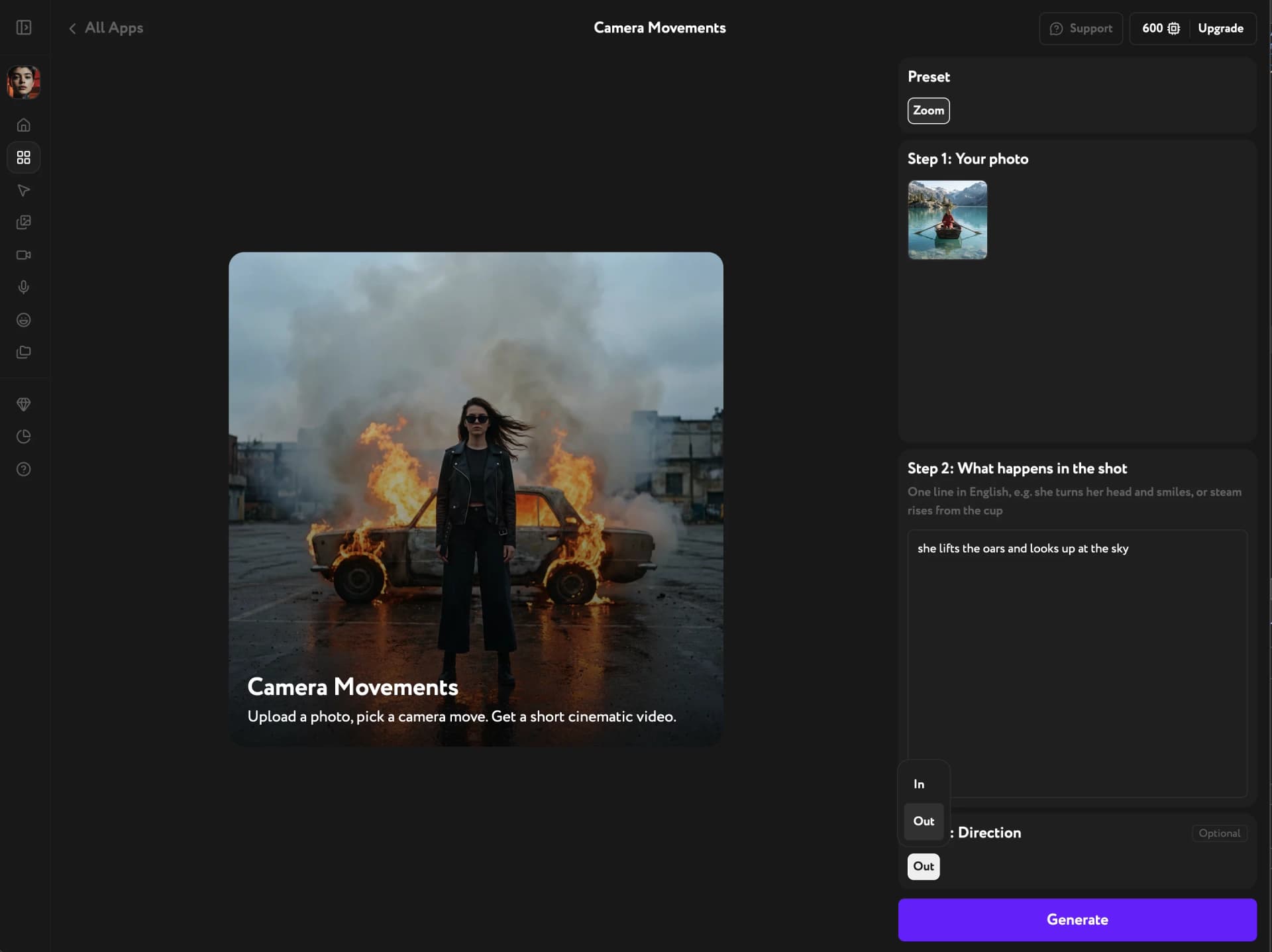
Camera Movements panel with an uploaded photo, a one-line description, and the Direction list open with In and Out

Generate the video

Click Generate. The result is a 5-second 16:9 video you can play, download, or reuse in other Everypixel tools.
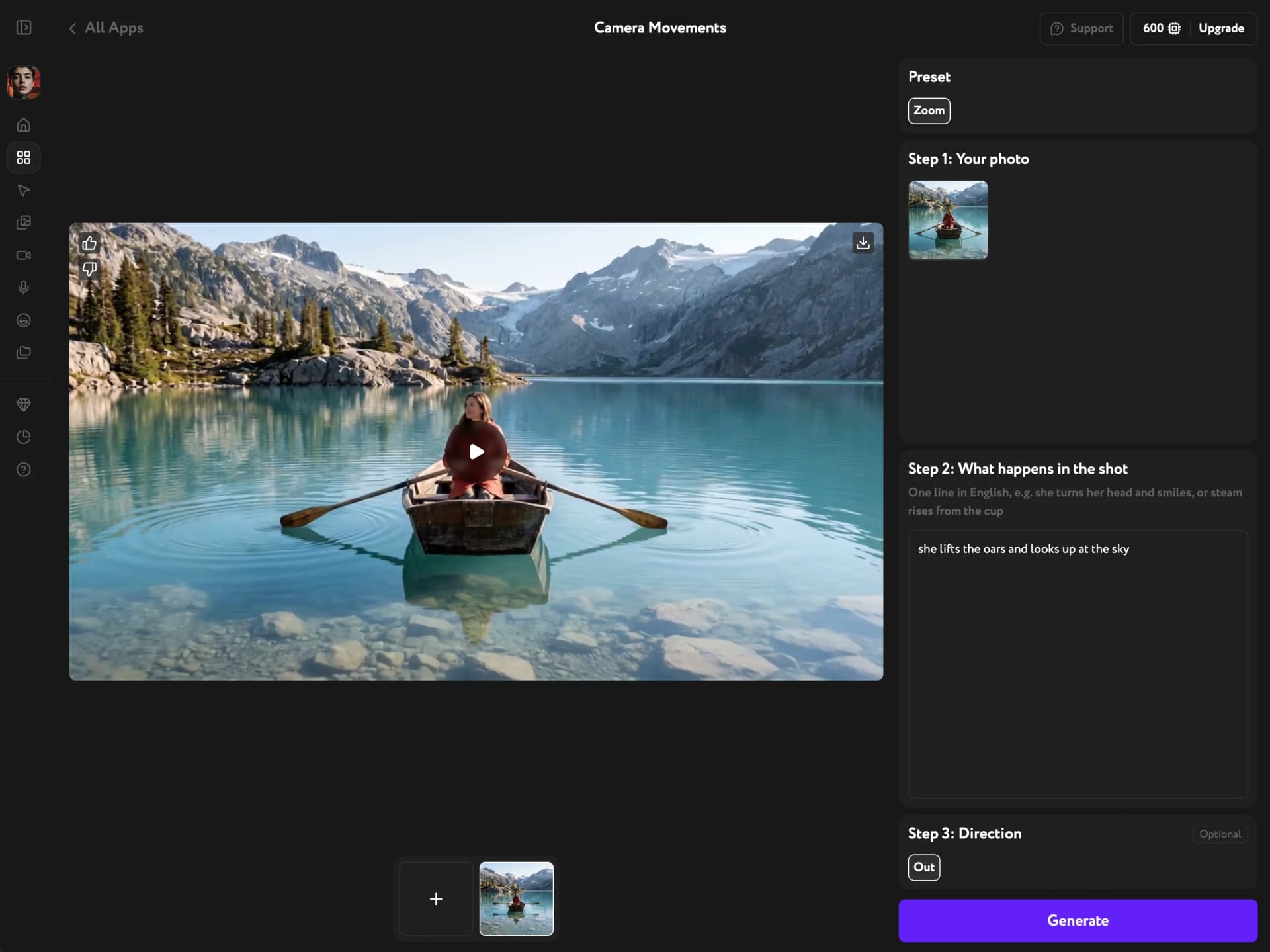
Generated pull-back video of a woman in a rowboat on a mountain lake, with the source photo, description, and direction in the panel

Each generation comes out a little different, even with the same photo and description. If the move or the action doesn't land the way you want, generate again — or try the other direction with the same photo.

Troubleshooting

The video moves in a way I didn't expect

Check your description for camera words. Zooming in, the camera circles, pan left — the generator treats these as instructions and adds that movement on top of the preset's own. Rewrite the line as a plain description of what happens in the frame.

The pull-back shows little new space

On Out, the widened edges continue the surfaces and light of your photo, so a tightly cropped photo gives the move less to show. Try a photo with more of the surroundings visible, or a wider framing of the same subject.

Is this the same as Crash Zoom or Dolly Zoom?

No. Crash Zoom is a fast snap toward the subject, and Dolly Zoom keeps the subject the same size while the background stretches. Zoom is a steady move in or out at an even pace. See Create a crash zoom video and Create a dolly zoom video.

Can I use the result commercially?

Personal use is included with your plan; commercial use requires a Pro subscription. See Manage credits and billing for details on plans and credits.

Next steps

To move the camera around your subject instead of toward it, try Create an arc shot video. To raise the camera above the scene or bring it down from overhead, see Create a crane shot video. Before generating, you can fix a low-resolution source with the Image Upscaler. Once the video is ready, score it with Add sound to any video.

Watch the video tutorial

How to Turn Video Clips into an Ad

How to Turn Video Clips into an Ad