
Crane Shot is a set of two presets in Camera Movements, part of Everypixel's AI workspace for video, image, and voice generation. From a single photo, it generates a 5-second 16:9 video where the camera moves vertically through the scene. Camera Crane Up starts on your photo and rises to a generated view from above. Camera Crane Down starts from a generated view from above and descends until it lands on your photo.
Open the crane preset
Open Apps from the sidebar and click Camera Movements. In the Preset block at the top of the right panel, open the list and pick Camera Crane Up or Camera Crane Down.
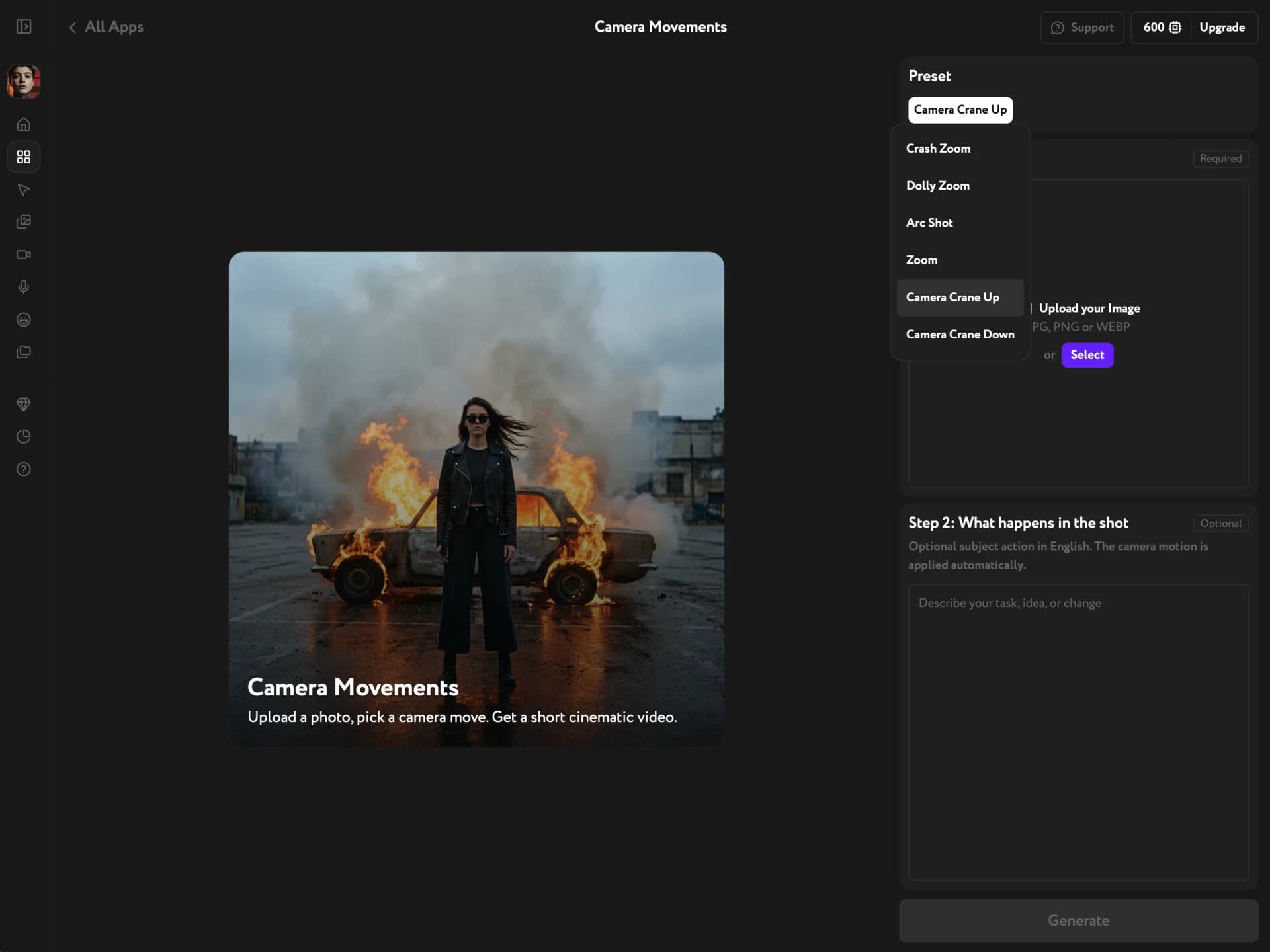
Pick by where you want the shot to go:
- Camera Crane Up — your photo is the first frame, and the camera rises above it. Use it to end a scene or to reveal a crowd, a street, or a landscape.
- Camera Crane Down — the shot starts high above the scene, and your photo is the last frame. Use it to open a scene or to introduce a character.
Add your photo
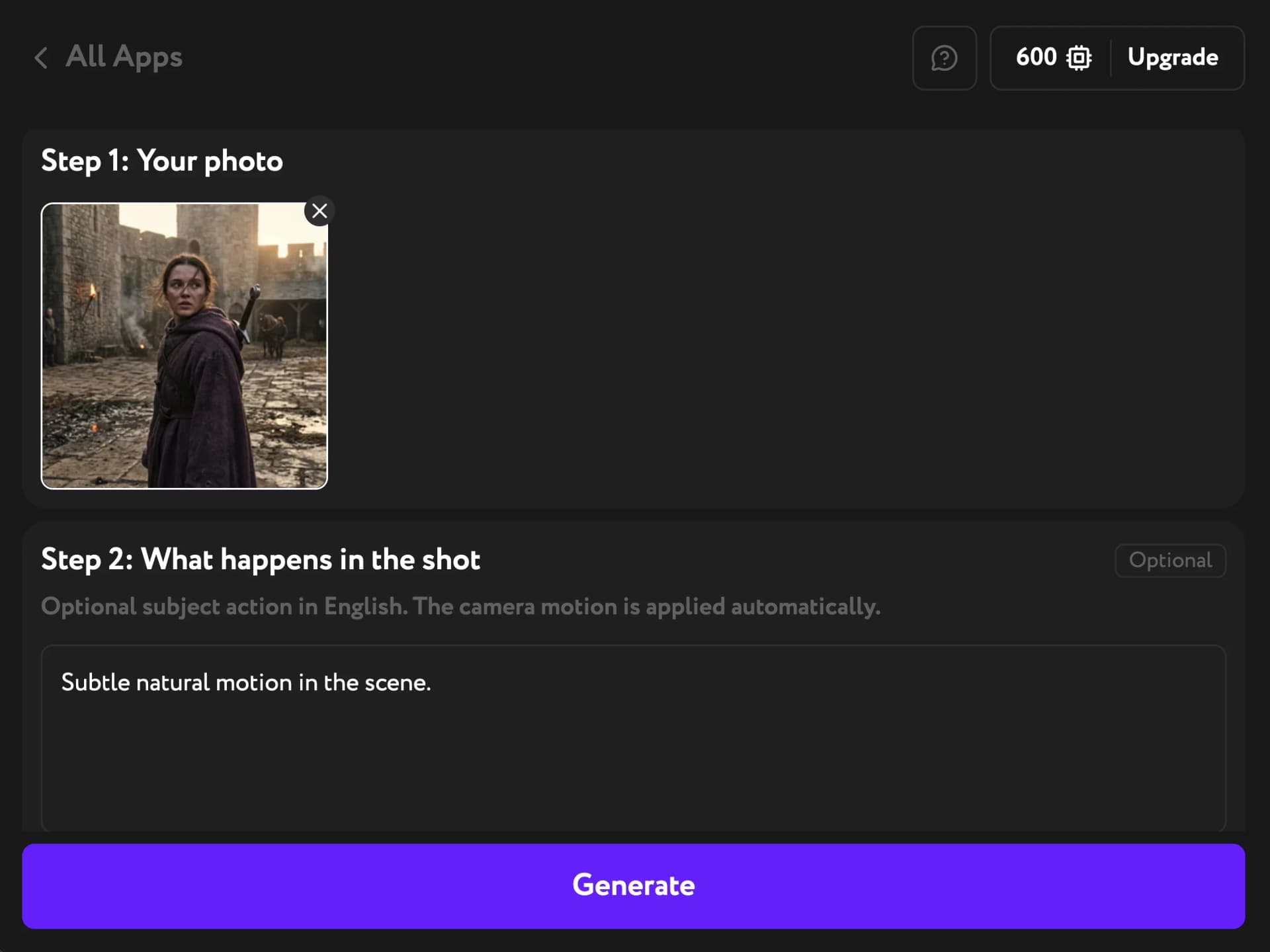
Under Step 1: Your photo, upload a JPG, PNG, or WEBP from your device. Or click Select to pick an image already in your Everypixel library.
Everypixel builds the view from above out of your photo, so choose one that shows some of the surroundings: a street, a courtyard, a room.
Describe what happens in the shot (optional)
Step 2: What happens in the shot is optional and comes filled in with "Subtle natural motion in the scene." Leave it, and the scene moves gently while the camera travels.
To direct the action, replace it with one line in English about the subject. For example, "she waves to the camera" or "she slowly turns her head." Slow, simple actions work best.
Describe the subject, not the camera. Words like crane up, rise, or the camera descends only repeat the preset and can make the result less predictable.
Generate the video
Click Generate. The result is a 5-second 16:9 video you can play, download, or reuse in other Everypixel tools.
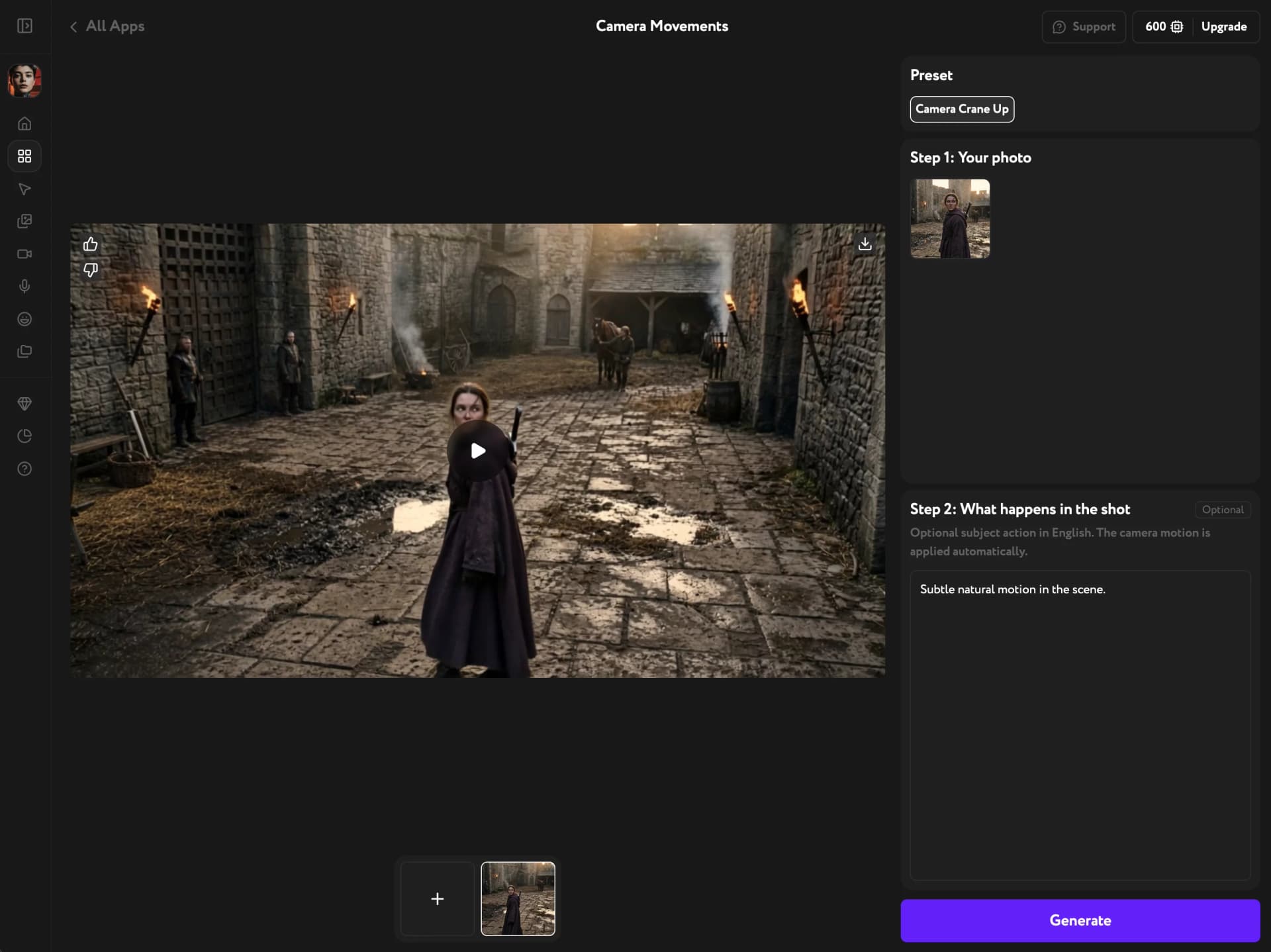
Each generation comes out a little different, even with the same photo and description. If the move or the action doesn't land the way you want, generate again, or try the other preset with the same photo.
Troubleshooting
The video moves in a way I didn't expect
Check your description for camera words. Zooming in, the camera circles, pan left — the generator treats these as instructions and adds that movement on top of the preset's own. Rewrite the line as a plain description of what happens in the frame.
People or clothing look distorted
Fast, complex actions, such as spinning or dancing, are hard to keep clean while the camera travels. Describe a slower, simpler action instead, such as turning the head or raising a hand.
The view from above shows little of the place
A tightly cropped photo gives the generated view less to work with. Try a photo with more of the surroundings visible, or a wider framing of the same subject.