Everypixel is an AI workspace for video, image, and voice generation — four studios and a set of standalone Apps in one interface. Every new account gets access to the core tools from day one. Here is what each one does.
Image
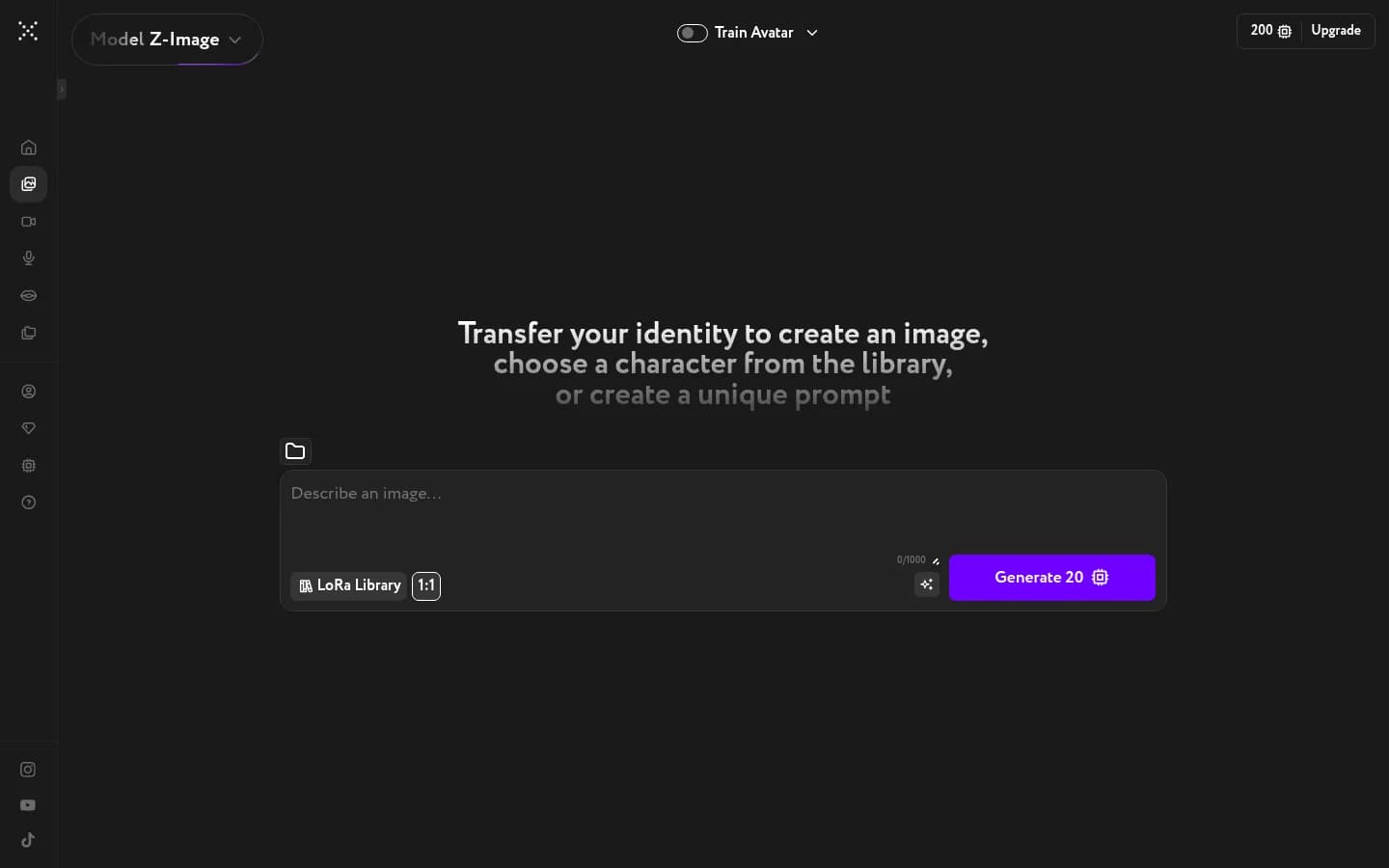
Generate or edit AI images from a text prompt. Pick from Z-Image, Flux 2 Pro, Seedream 4.0, Nano Banana 2, GPT Image, GPT Image 2, and more — each model has its own visual flavor. A single generation costs 2–10 credits and finishes in seconds.
Video
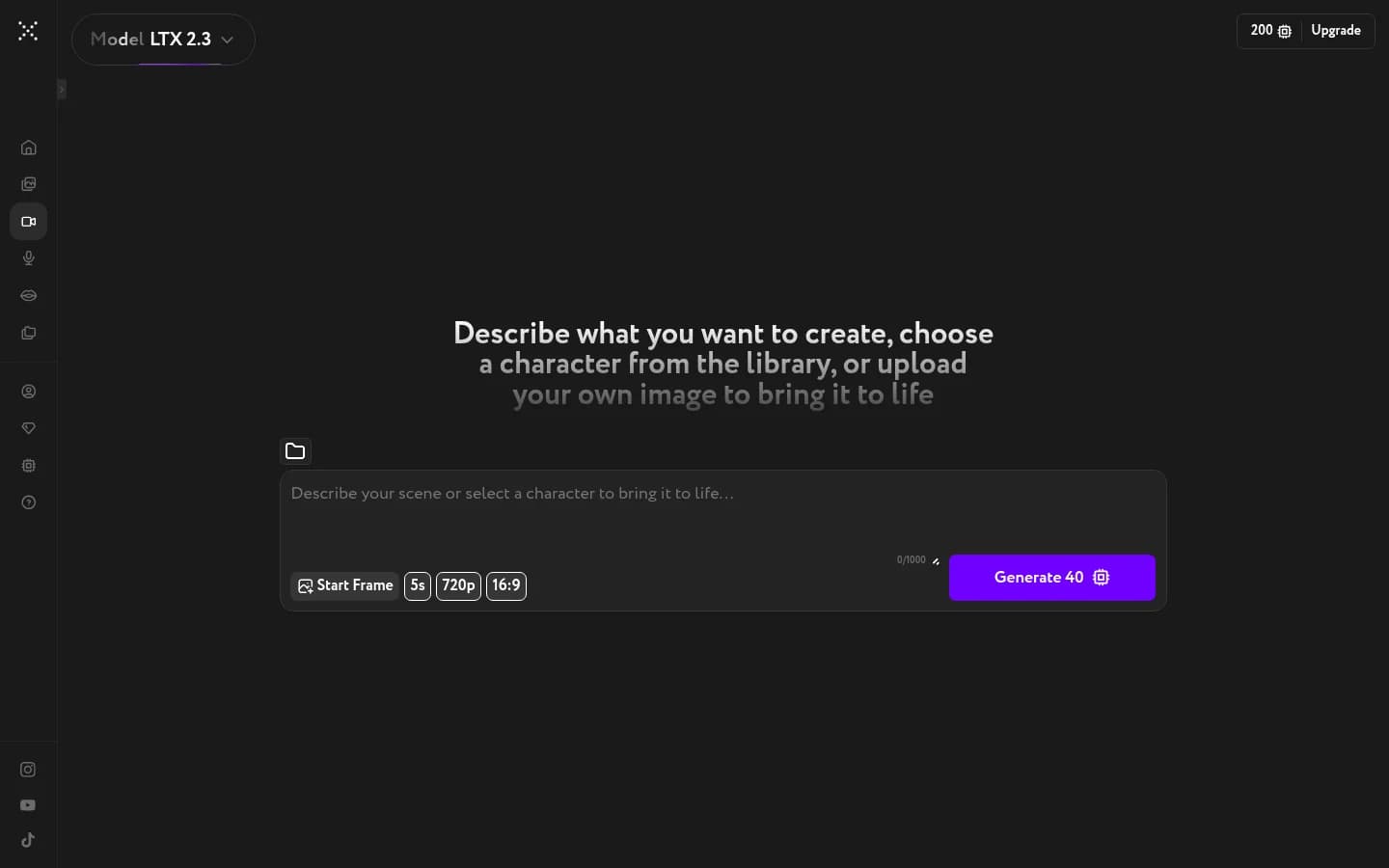
Turn a text prompt or a reference image into a short video. Models include MiniMax H3 Turbo, LTX 2.3, WAN 2.6, Runway Gen-4.5, Seedance 2.0, Hailuo 02, Gemini Omni 1.1 Flash, and more — covering everything from cinematic realism to stylized motion. A 5-second video starts at 5 credits.
Voice
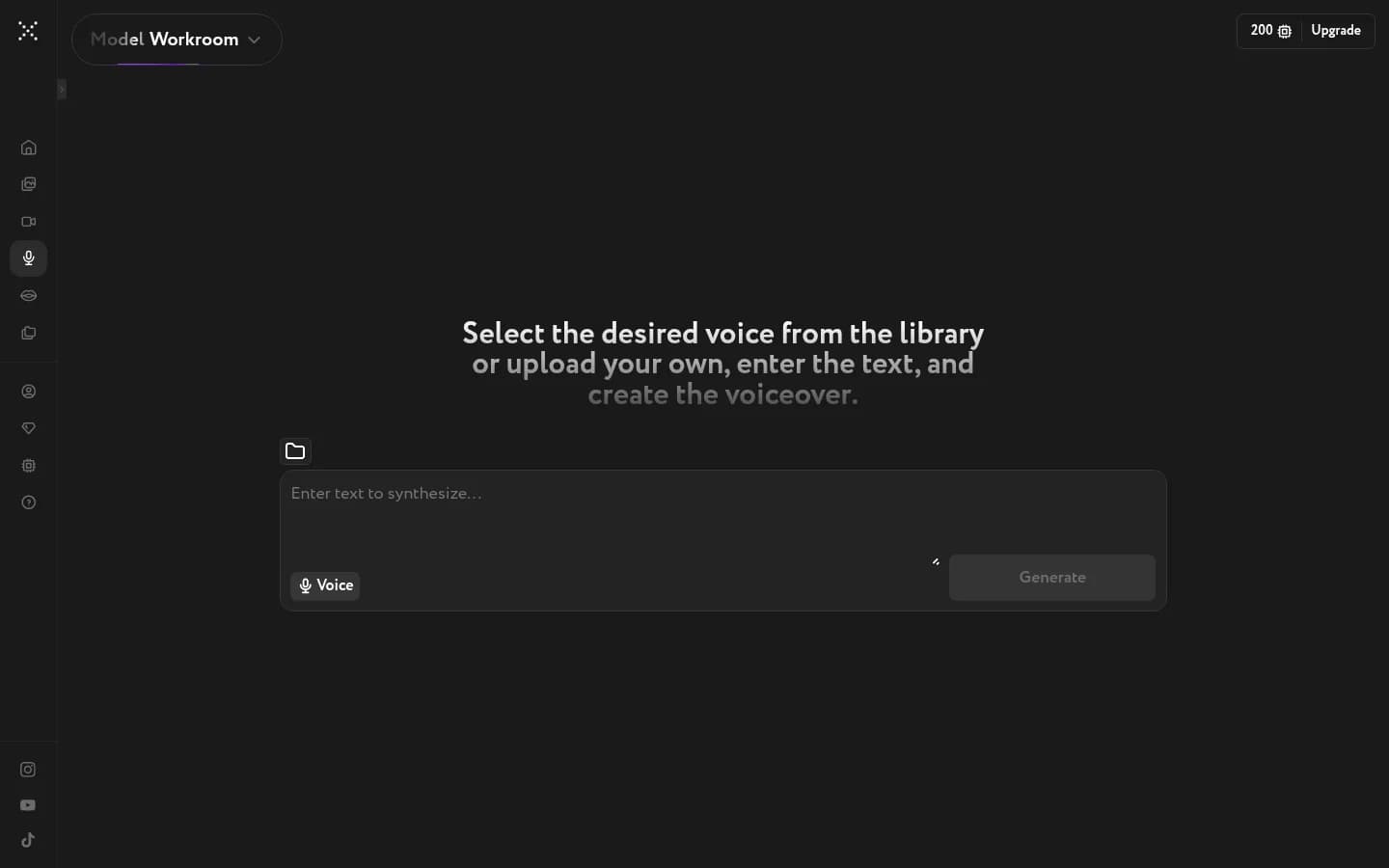
Type your script and Everypixel turns it into speech. Pick a voice from the library or upload a sample to clone it.
Lip Sync
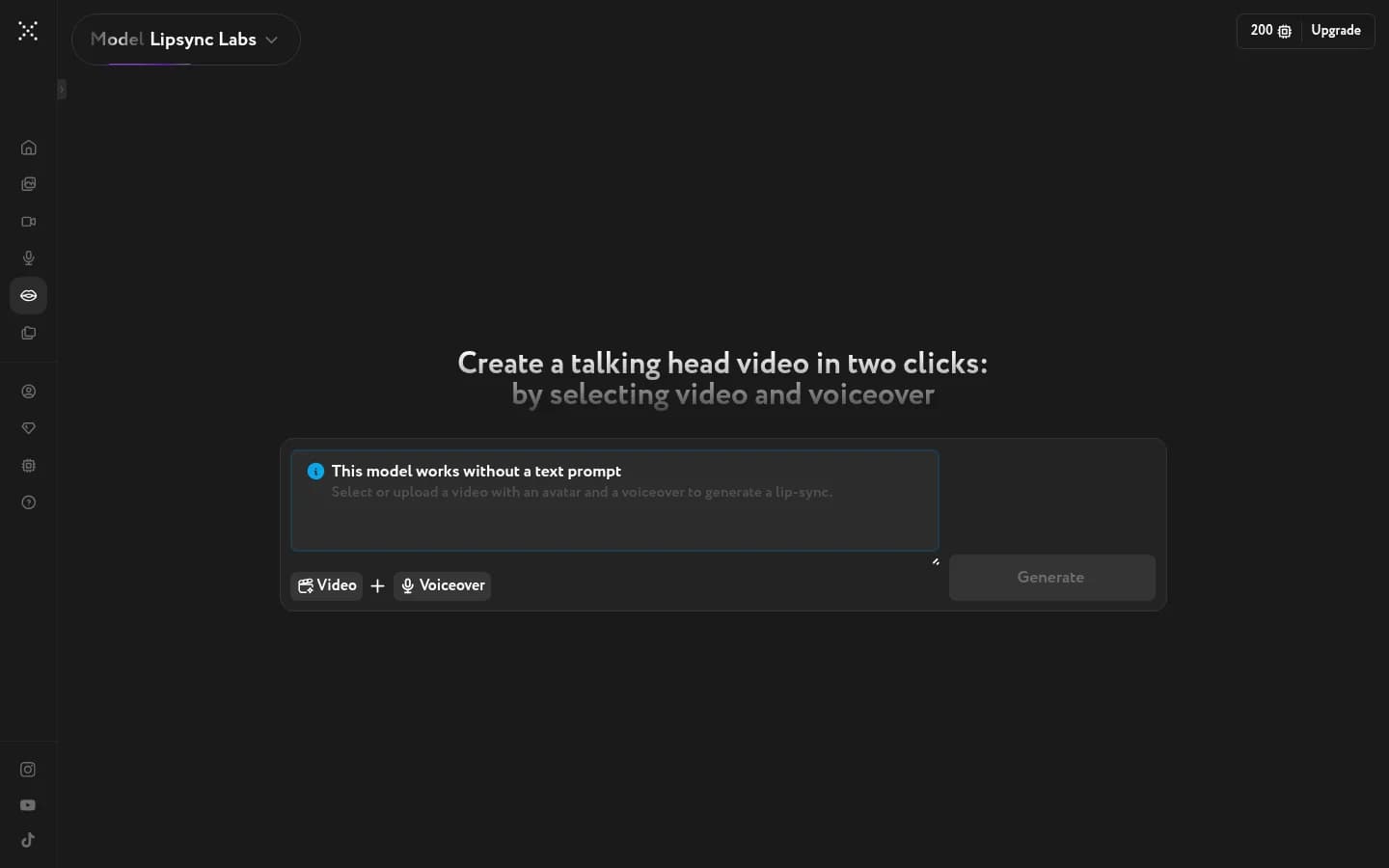
Sync the lips on any face video to any voiceover. Upload the video, upload the audio, press Generate. No text prompt required.
Apps
Standalone tools for processing and enhancing assets you've already generated or uploaded — no prompt needed. Open Apps from the sidebar and pick the tool you need.
- Image Upscaler — increase image resolution and restore fine detail
- Video Upscaler — scale video up to 1440p frame by frame
- Image Face Swap — replace a face in a photo with one from a reference
- Video Face Swap — map a face across every frame of a video
- Color Grading — borrow the color mood of any reference frame
- Camera Angle Editor — regenerate a shot from a different viewpoint
Assets
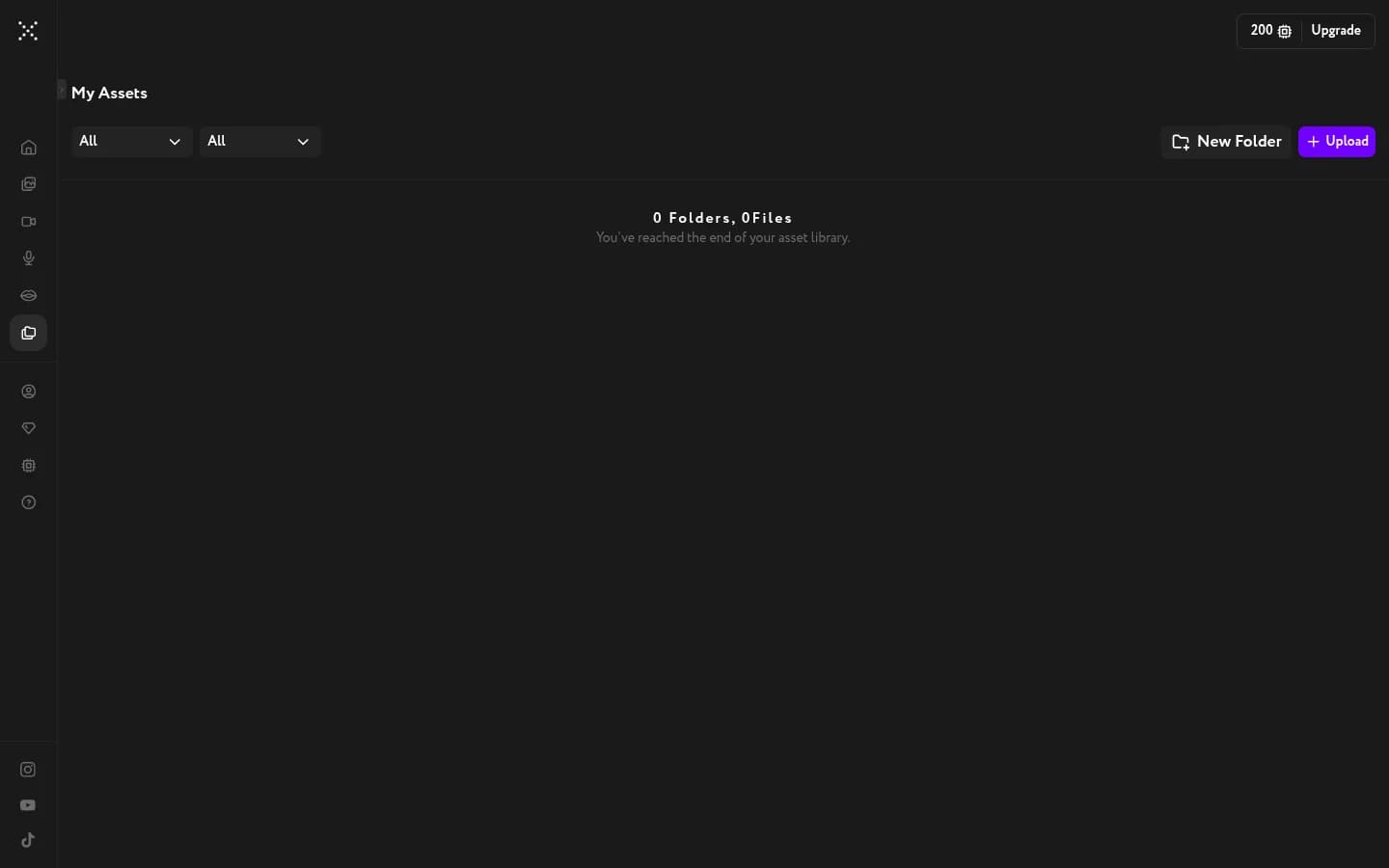
Every image, video, and voiceover you generate lands in Assets automatically. Filter by type, organize into folders, and download anything you need.