
Generate Your First AI Video

Updated November 6, 2026

Everypixel is an AI workspace for video, image, and voice generation. To make your first video, open Video Generation, write what you want to see, and press Generate.

Open Video Generation

Click Video in the left sidebar. The editor opens with MiniMax H3 Turbo selected by default. This walkthrough uses LTX 2.3: open the model list and pick it. Each model description shows what it works best for.

Describe your video

Type your text-to-video prompt in the box at the bottom of the editor. Be specific about style and mood. In this example we used "A wooden rowing boat drifts slowly through a foggy mountain lake at dawn, the still water reflecting pine trees and pale gray sky."
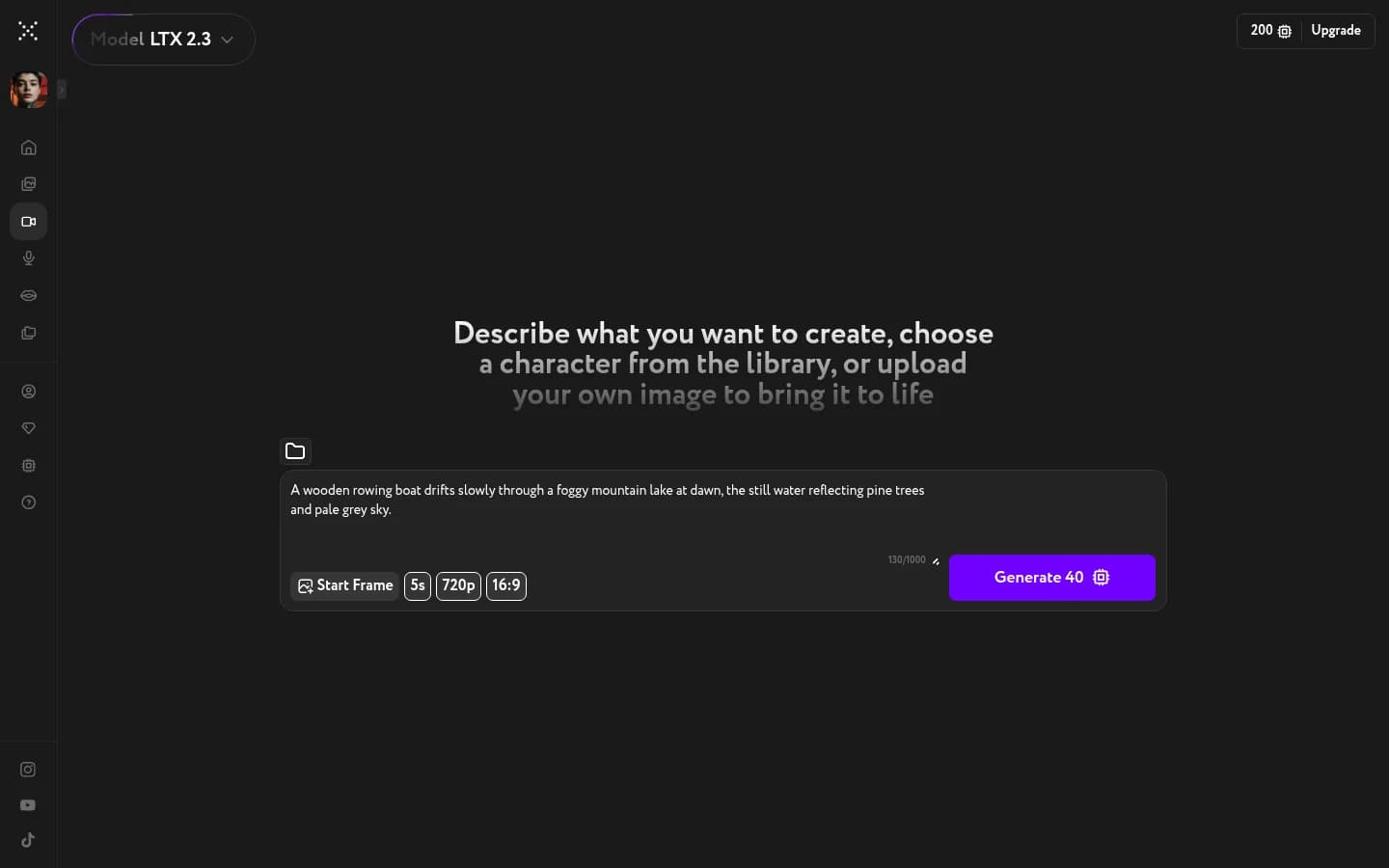
Everypixel Video editor with LTX 2.3 selected, a filled prompt about a rowing boat on a foggy mountain lake, and controls for Start Frame, 5 seconds, 720p, 16:9, plus a purple Generate button showing the cost

The defaults — 5 seconds, 720p, 16:9 — work for a first generation.

Press Generate

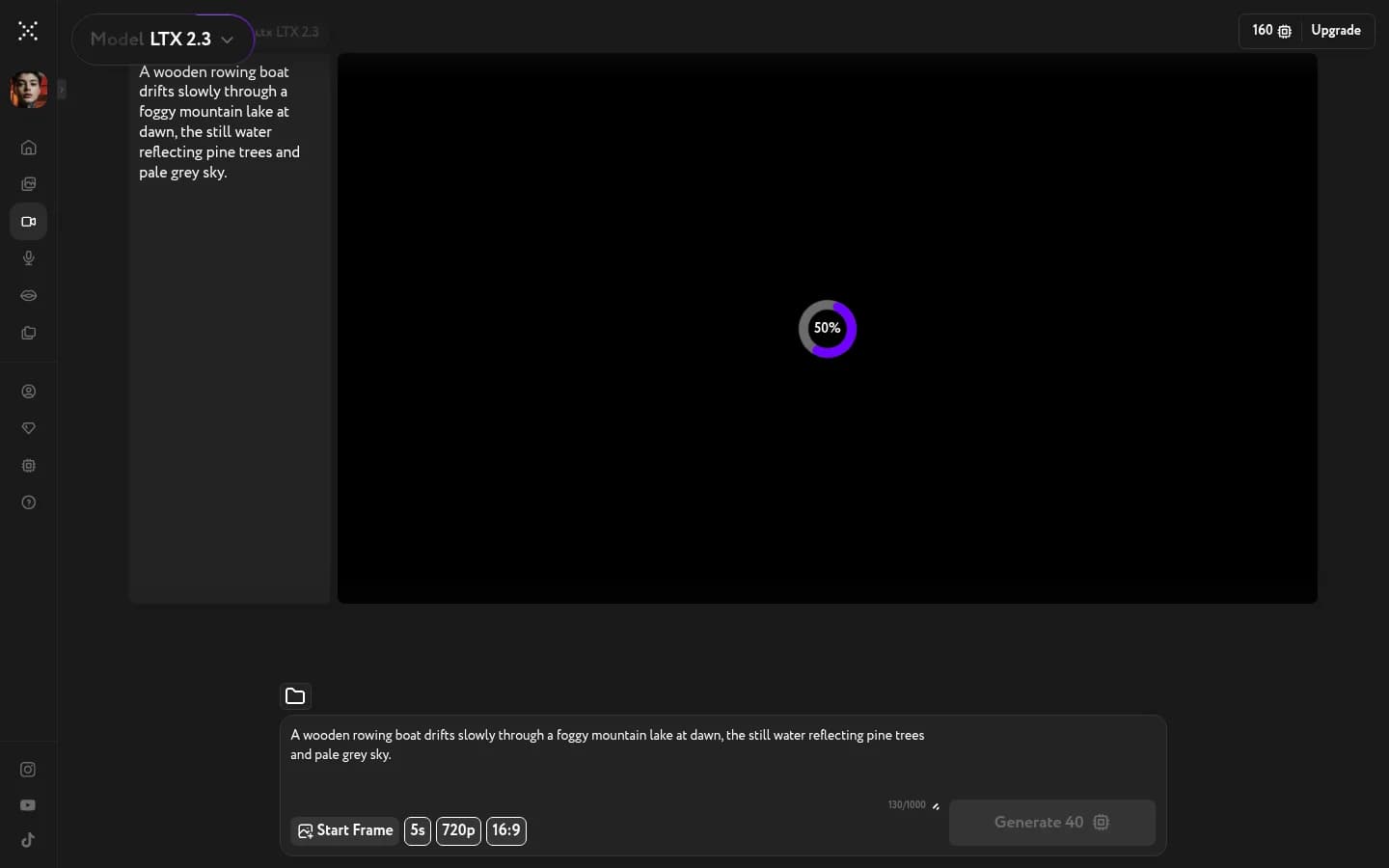
The Generate button shows the cost — 5 credits for a five-second video at 720p. Press it. Credits come off your balance right away, and a progress ring appears.
On Starter and Pro, LTX 2.3 runs unlimited — this same generation costs 0 credits. See unlimited models on paid plans.
Everypixel Video in the middle of generating a video — a dark player with a purple 50% progress ring, the prompt visible on the left, and the credit balance in the top corner already reduced by the cost

Your video is ready

LTX 2.3 typically takes two to six minutes for a five-second video. When it finishes, the player fills with your result and a green "Your generation is ready — check Motion" toast appears in the corner. Hit play, download, favorite it, or send it to Lip Sync.
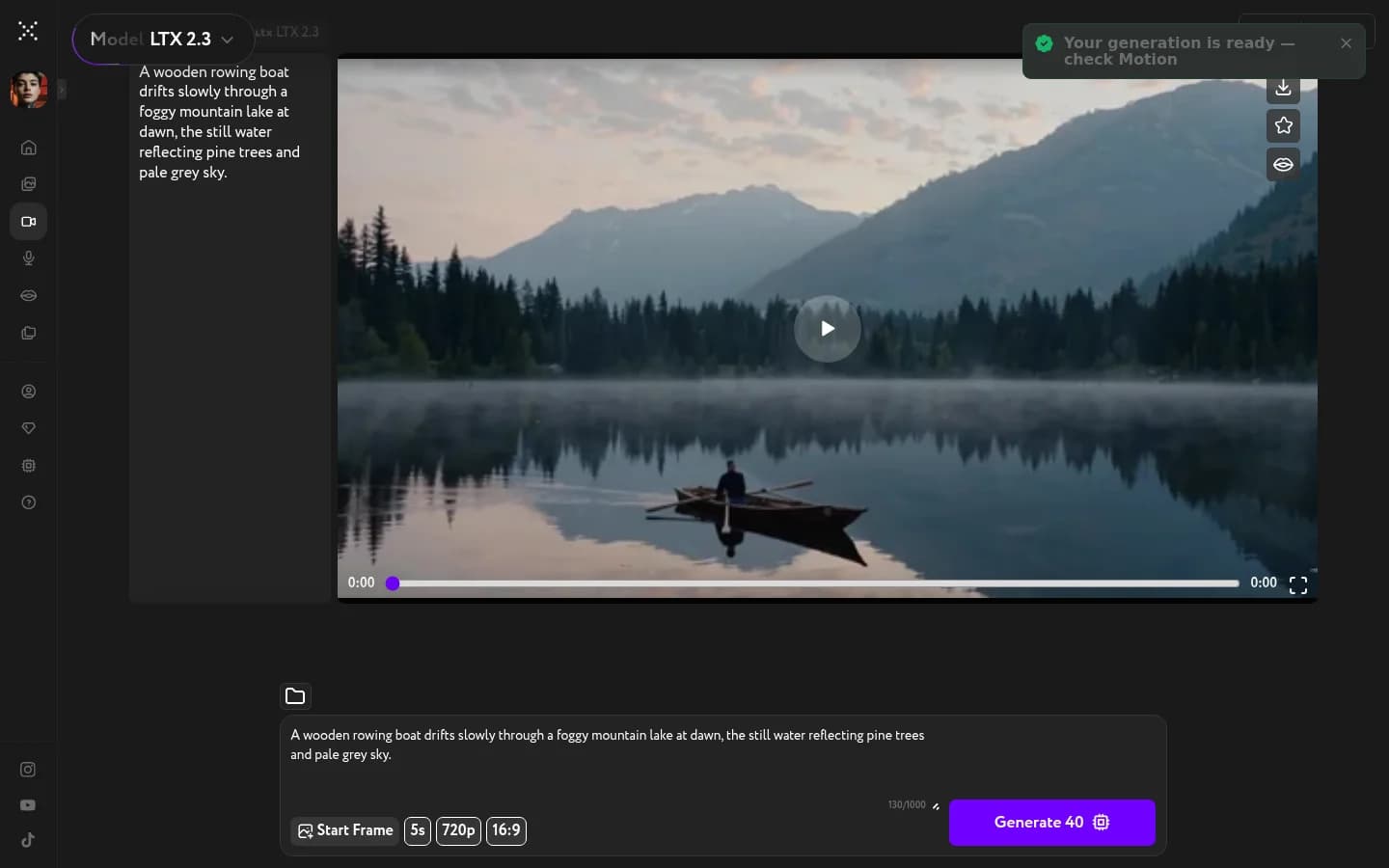

Everypixel Video showing the finished video in the player — a wooden rowing boat on a foggy mountain lake — with a success toast "Your generation is ready — check Motion" and download controls

Next steps

Every result is saved automatically in Assets — come back to it or download it anytime. Curious how credits work? See how Everypixel credits work. Want to try the other tools? Take a quick tour of Everypixel.

Watch the video tutorial

Generate a Video with LTX 2.3

Generate a Video with LTX 2.3